

How to Detect a Shopify Theme of Any Store For Free
Identify a Shopify store’s theme through four free methods, then qualify the store and preview the theme before deciding whether it fits your catalog.
This article will show you how to detect the Shopify theme of any store.
Dropship’s free Chrome extension allows you to see the theme any Shopify store uses.
If we like a store, we spy on its theme as it can give us inspiration for our own store. We can then add the theme to our account, customize it, and see if it works for us.
In this article, we’ll show you a few methods to detect Shopify store themes, as well as why you should look at the theme and much more.
Let’s get into it.
Key Takeaways
- Dropship’s Chrome extension is our favorite Shopify theme detector tool. It’s free forever, easy to use, and shows more than just the store’s theme.
- You can also find a store theme using the source code.
- Finding out which theme a store uses can give you ideas and inspiration for your own store.
1. Using a Shopify Theme Detector Tool
There are Chrome extensions and sites built to detect which theme a Shopify store is using.
Using one of these tools is the quickest, simplest, and easiest way to see the name of the Shopify theme.
Some of the tools are free, and others require a paid subscription.
The tools that require a paid subscription also include several other features. Often, these tools let you spy on other aspects of Shopify stores, such as sales, product launches, revenue, and much more.
1. Dropship
We might be a bit biased, but Dropship is the best tool for detecting a Shopify theme. You can view the theme on the Chrome extension and the website.
The Chrome extension is free and doesn’t require a paid plan or subscription. It is super easy to navigate and offers more features than just theme detection.
Dropship has paid plans available. If you sign up for a paid plan, you can also see the theme on the website. The paid plans allow you to save and track stores and discover tons more information, like sales and revenue.
Chrome Extension (Free and No Sign Up Required)
Even without signing up for Dropship, you can view which theme a Shopify store uses with the Dropship Chrome extension.

To do so, follow these steps:
- Visit the Chrome web store and search for Dropship or click this link.
- Add the extension to Chrome.
- Open the site you want to view the theme of.
- Click on the arrow next to the Dropship icon in the lower left-hand corner of the screen and click on Overview.
The Overview page will look slightly different depending on whether or not you’ve signed up for Dropship.
However, the theme is displayed in the same place. This is directly underneath the store name and site.

Without signing up to Dropship, you can also see the following:
- How many Dropship users are tracking the store
- The date the store was created
- The store’s language
- How many products the store has
- Links to the store’s social media channels and ads
- Best selling products
- Apps the store uses
The other store information, such as revenue and sales, will be blanked out. You’ll need a paid plan or an active free trial to access this information.
Currently, you can access a 7-day Dropship free trial using this link.
Once you activate the free trial or sign up for a plan, the Chrome extension will look as follows:

You’ll be able to see the sales, revenue, and live sales. You can also choose to add the store to the Sales Tracker.
Sobald Sie den Shop verfolgen, können Sie detailliertere Verkaufsdaten einsehen und diese über einen längeren Zeitraum überwachen.
Benutzerdefiniertes Theme
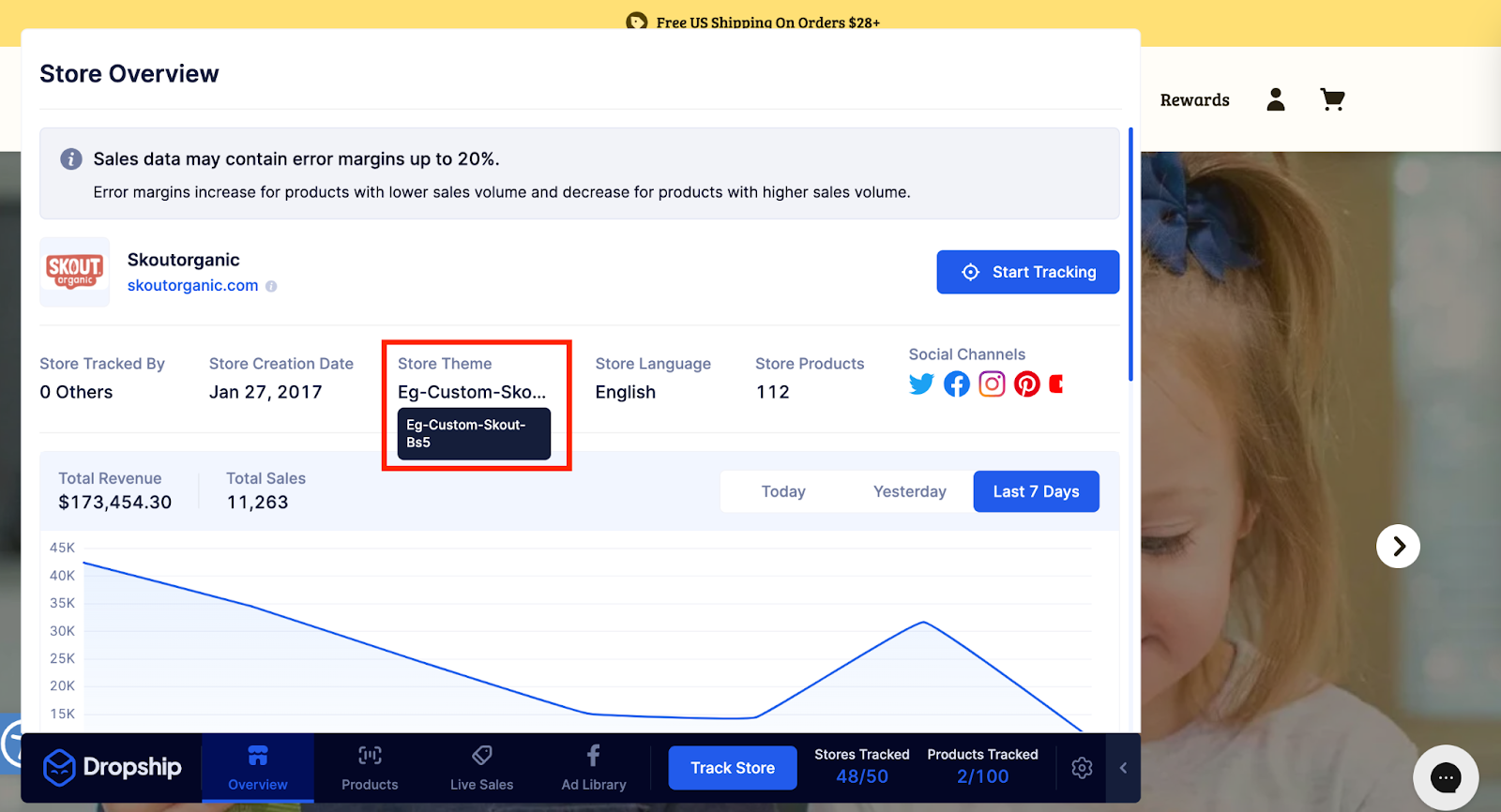
Wenn ein Shop ein benutzerdefiniertes Theme verwendet, listet Dropship „Benutzerdefiniert“ auf.
Ein benutzerdefiniertes Theme ist ein Theme, das speziell für diesen Shop oder diese Marke erstellt wurde. Normalerweise wird es von einem Entwickler von Grund auf neu erstellt. Es verleiht der Website ein wirklich individuelles Aussehen und kann nicht von anderen Shopify-Nutzern kopiert werden.
Wenn ein Shop ein benutzerdefiniertes Theme verwendet, sieht es auf Dropship wie folgt aus:
Bezahlte Abo-Methode – Dropship-Website und Chrome-Erweiterung
Wenn Sie ein bezahltes Abo haben, können Sie das Theme in der Dropship-Chrome-Erweiterung einsehen, wie oben gezeigt.
Aber Sie können das Theme auch im Sales Tracker über die Hauptwebsite einsehen.
Gehen Sie dazu wie folgt vor:
- Fügen Sie den Shop zu Ihrem Sales Tracker hinzu. Dies können Sie auf verschiedene Arten tun, z. B. durch Eingabe der URL oder durch Hinzufügen aus der Chrome-Erweiterung, der Produktdatenbank oder einem der anderen Tools von Dropship.

- Öffnen Sie den Sales Tracker und suchen Sie den Shop, dessen Theme Sie einsehen möchten.
- Klicken Sie auf „Einblicke“.

Dadurch werden die Details des Shops geöffnet und das von ihm verwendete Theme angezeigt.
Das Theme wird unterhalb des Namens und der Website des Shops angezeigt.

Neben dem Theme können Sie auch viele weitere Daten einsehen. Zum Beispiel Umsatz und Verkäufe nach dem ausgewählten Zeitraum, die Werbebibliothek, Produkte, Apps und vieles mehr.
2. Shopify Theme Detector
Shopify Theme Detector ist eine kostenlose Website und Chrome-Erweiterung.
Seine einzige Funktion besteht darin, Ihnen anzuzeigen, welches Theme ein Shopify-Shop verwendet.
Shopify Theme Detector Website

Um ein Theme mit der Shopify Theme Detector-Website zu überprüfen, können Sie die Website öffnen, die URL eingeben und auf „Theme erkennen“ klicken. Daraufhin wird das verwendete Theme angezeigt.
Die Website ist aufgrund der vielen Anzeigen und Werbungen nicht besonders benutzerfreundlich. Jedes Mal, wenn Sie ein Theme überprüfen, wird ein neues Fenster mit Werbung geöffnet. Wenn Sie also die Themes mehrerer Shops überprüfen, enden Sie mit vielen offenen Werbefenstern.
Aber sie erfüllt ihren Zweck und eignet sich, wenn Sie nur gelegentlich das Theme eines Shops überprüfen möchten.
Shopify Theme Detector Chrome-Erweiterung

Shopify Theme Detector bietet auch eine Chrome-Erweiterung. Sie können die Erweiterung aus dem Google Chrome Web Store herunterladen.
Mit ihr können Sie herausfinden, welches Theme ein Shopify-Shop verwendet, während Sie ihn besuchen.
The extension is easy to use; you just need to click on the extension from the toolbar, and it will search for a minute and show you the theme a store is using.
However, it will only show the theme. It doesn’t offer any additional information.
In contrast, Dropship shows the apps used, creation date, number of products, and social media links without joining a subscription.
For this reason, as both Chrome extensions are free, we recommend Dropship’s Chrome extension over Shopify Theme Detector.

Custom Theme

If the store uses a custom theme, it will display Custom in the title in the same way Dropship does.
2. Find it Manually
You can find the theme any Shopify store uses in the source code.
It’s a bit more technical than using one of the tools listed above, but it's easy to do once you know how to find it.
1. Open the Shopify store that you want to view the theme of, and open the source code.
Note: How you find the source code will depend on your browser and computer.
a. Mac (Chrome, Firefox, and Safari) - Press Option + Command + U
b. PC (Chrome, Firefox, Edge/Internet Explorer, Opera) - Press CTRL + U
2. Search the source code.
Note: The way you search on the browser will vary.
a. Mac - Press Command + F
b. PC - Press CTRL + F
3. Enter shopify.theme into the search bar.

This will highlight and take you to the lines in the source code which display the theme.

In line 331, we can see the name of the theme is Fuel Pop 1.2.
We can also see that the ID of the theme is 137733177593.
There is no exact method for locating a Shopify theme by its ID. However, you can Google the ID number, along with Shopify Theme, and it will usually show you the name.
For example, If we search Shopify Theme ID 57, it tells us that the theme is Sunrise.

This isn’t the most reliable way to find the theme name, and we would always choose to use a tool to show us the theme name instead of searching by ID.
Benutzerdefiniertes Theme
Wenn ein Shop ein benutzerdefiniertes Theme verwendet, wird dies ebenfalls im Quellcode angezeigt.
Zum Beispiel, wenn Sie sich den Quellcode von Skout Organic ansehen und nach shopify.theme suchen, sehen wir neben „name“ z. B. „eg-custom-skout“.
Das zeigt, dass Skout Organic ein benutzerdefiniertes Theme verwendet.

3. Kontakt zum Shop aufnehmen
Wenn Sie das Theme, das ein Shop verwendet, nicht im Quellcode finden können und kein Tool verwenden möchten, können Sie sich immer an den Shop wenden und nach dem verwendeten Theme fragen.
Gehen Sie dazu auf die Website des Shops und suchen Sie den Abschnitt „Kontaktieren Sie uns“.

Sie können den Shop per E-Mail oder über ein Kontaktformular erreichen. Wir empfehlen, den Shop zu loben, bevor Sie nach dem verwendeten Theme fragen.
Zum Beispiel könnten Sie Folgendes schreiben:
„Hallo,
Zuerst möchte ich sagen, wie sehr uns das Aussehen und die Gestaltung Ihres Shops gefallen. Er hat uns viel Inspiration für unseren eigenen Dropshipping-Shop gegeben.
Ich hoffe, es macht Ihnen nichts aus, wenn ich frage: Welches Shopify-Theme verwenden Sie?
Vielen Dank! Ich freue mich auf Ihre Antwort.“
Diese Methode ist wahrscheinlich unsere am wenigsten bevorzugte, da sie davon abhängt, dass der Shop Ihnen antwortet, und es kann lange dauern, bis Sie eine Antwort erhalten.
Und wenn sie Sie als Konkurrenz sehen, möchten sie möglicherweise nicht teilen, welches Theme sie verwenden.
4. Shopify-Theme-Bibliothek durchsuchen

Aktuell gibt es 167 kostenlose und kostenpflichtige Shopify-Themes in der Shopify-Theme-Bibliothek.
Sie können die Bibliothek durchsuchen, um zu versuchen, das Theme zu finden, das ein Shopify-Shop verwendet.
Allerdings kann es schwierig sein, das Theme zu identifizieren, da ein Shop das Theme meist stark anpasst und möglicherweise Aspekte ändert. Daher sieht es oft ganz anders aus als die im Theme-Bibliothek bereitgestellte Vorlage.
Es kann auch sehr lange dauern, alle 167 Optionen manuell zu durchsuchen. Und das Theme könnte benutzerdefiniert sein oder von jemandem erstellt worden sein, der es nicht in der Shopify-Theme-Bibliothek anbietet, sodass Sie es nicht finden werden.
Was ist ein Shopify-Theme-Detektor?
Ein Shopify-Theme-Detektor bezieht sich auf ein Tool, das entwickelt wurde, um das Theme zu erkennen, das ein Shopify-Shop verwendet.
Die Shopify-Bibliothek enthält über 167 kostenlose und kostenpflichtige Themes, und es gibt auch Designer, die Shopify-Themes erstellen, sodass es wahrscheinlich Zehntausende von Shopify-Themes gibt.
Ein Shopify-Theme-Detektor-Tool macht es schnell und einfach, das genaue Theme zu finden, das jeder Shopify-Shop verwendet, ohne den Shop zu kontaktieren, die Bibliothek zu durchsuchen oder es im Quellcode zu finden.
Was ist ein Shopify-Theme?
Ein Shopify-Theme definiert das Aussehen und Gefühl eines Shopify-Shops. Es steuert das Layout, den Stil, die Organisation und die Funktionen.
Sie können das Theme mit dem Shopify-Theme-Editor anpassen, aber das Theme bestimmt das Aussehen und Gefühl.
Warum sollte ich ein Shopify-Theme eines anderen Shops erkennen?
Ein Shopify-Theme zu erkennen, kann Ihnen Inspiration für Ihren eigenen Shop geben, die Auswahl aus Tausenden von Optionen erleichtern und Ihnen helfen zu verstehen, was wichtig ist und wie Sie Ihre Konkurrenz übertreffen können.
Lassen Sie uns diese Gründe genauer betrachten.
Inspiration für Ihren eigenen Shop gewinnen - Wenn Sie sich einen Shop ansehen, dessen Theme Ihnen gefällt und der in Ihrer Nische liegt, kann dies Ihnen Inspiration für Ihren eigenen Shop geben. Wir empfehlen, mehrere Shops zu betrachten und die Funktionen, das Layout, die Anpassungsmöglichkeiten und die Funktionalität zu vergleichen, um das richtige Theme für Sie auszuwählen.
Entscheidungen erleichtern - Shopify bietet viele kostenlose und kostenpflichtige Themes in der Bibliothek an, zudem gibt es viele Designer, die Shopify-Themes verkaufen. Dadurch haben Sie Tausende von Themes zur Auswahl, was sehr überwältigend sein kann. Wenn Sie einen Shop finden, der ein Theme verwendet, das Ihnen gefällt, können Sie es einfach erkennen und zu Ihrem eigenen Shop hinzufügen.
Herausfinden, was für Ihr Unternehmen wichtig ist - Wenn Sie einen neuen Shop eröffnen, wissen Sie möglicherweise nicht genau, was Sie von Ihrem Shopify-Theme benötigen. Wenn Sie Shops betrachten, die in einer ähnlichen Nische wie Ihre liegen und alle Funktionen bieten, die Sie benötigen, kann dies helfen, herauszufinden, was wichtig ist.
Zum Beispiel, wenn Sie einen Bekleidungs-Shop auf Shopify eröffnen möchten, benötigen Sie möglicherweise ein Theme mit einem Mega-Menü und einer Schnellansicht. Wenn Sie einen Shop mit diesen Funktionen finden, können Sie das Theme erkennen und zu Ihrem Shop hinzufügen.
Mit der Konkurrenz vergleichen - Sie möchten möglicherweise Ihre größten Konkurrenten betrachten und prüfen, ob sie ein benutzerdefiniertes oder vorgebautes Theme verwenden. Wenn Sie feststellen, dass sie ein benutzerdefiniertes Theme verwenden, könnte dies darauf hindeuten, wie viel Sie in Ihren Shop investieren müssen, um wettbewerbsfähig zu sein.

Um Ihre Konkurrenz zu finden, schauen Sie sich das Tool "Competitor Research" von Dropship an und fügen Sie die Shops zu Ihrem "Sales Tracker" hinzu.
So finden Sie Ihre Konkurrenz ganz einfach und sehen die Themes, die sie verwenden, ohne jeden Shop manuell zu durchsuchen und zu erkennen. Dies können Sie kostenlos mit der "7-tägigen kostenlosen Testversion" tun.
Wird mein Shop genauso aussehen wie andere mit demselben Theme?

Das hängt von den Anpassungen ab, die Sie vornehmen.
Ihr Shopify-Shop wird nicht identisch mit anderen Shops mit demselben Theme aussehen, da Sie das Theme mit dem Theme-Editor an Ihre Marke anpassen können. Der Theme-Editor ist einfach zu bedienen und bietet eine Klick-zum-Bearbeiten-Technologie.
However, some themes have limited customizations available, which can lead to your store looking similar to others with the same theme.
For a truly unique Shopify store, you will need to either buy a custom theme from a developer or edit the theme code. But this can be expensive, starting at around $2000.
Frequently Asked Questions
How Do I Find the Right Shopify Theme?
Start by looking at stores in your niche and identifying the functions, layout, and other aspects you like. You can spy on which theme they’re using with Dropship and compare the themes to help you choose one.
You can also search through the Shopify theme library and filter the results by your niche or the features you need.
Shopify makes it easy to change your theme, so don’t put too much pressure on finding the right theme straight away. You can start your store with one theme and swap to another if you find one that’s more suitable.
Can You Test a Shopify Theme?
Yes, you can customize and preview any of Shopify’s themes in the theme editor before buying and launching it.
You can also add several themes to your Shopify account. You can customize each one and easily switch between them.
How Do You Find Out What Theme a Shopify Site Is Using?
Add Dropship’s free extension to your Chrome, open the store you want to inspect, and click on the overview button to reveal their Shopify theme.
As explained in the article above, you can also look in the source code or use a tool like Shopify Theme Detector.
What Is a Spy Tool for Shopify Stores?
A spy tool allows you to reveal the secrets behind a Shopify store. Dropship is an incredible Shopify spy tool. It allows you to see which theme a store uses, which apps are installed, how many products it lists, sales, revenue, and so much more.
Check out our article if you want more information on Shopify spy tools. It includes everything you need to know about 20 of the best spy tools.
Final Thoughts
Hopefully, this article has helped you learn how to detect the themes of Shopify stores.
Make sure to add Dropship’s extension to your Chrome. It’s free forever and will show you more information about the store than just its theme.
And if you want to access the sales and revenue information, check out Dropship’s Sales Tracker tool mit der 7-tägigen kostenlosen Testversion.


